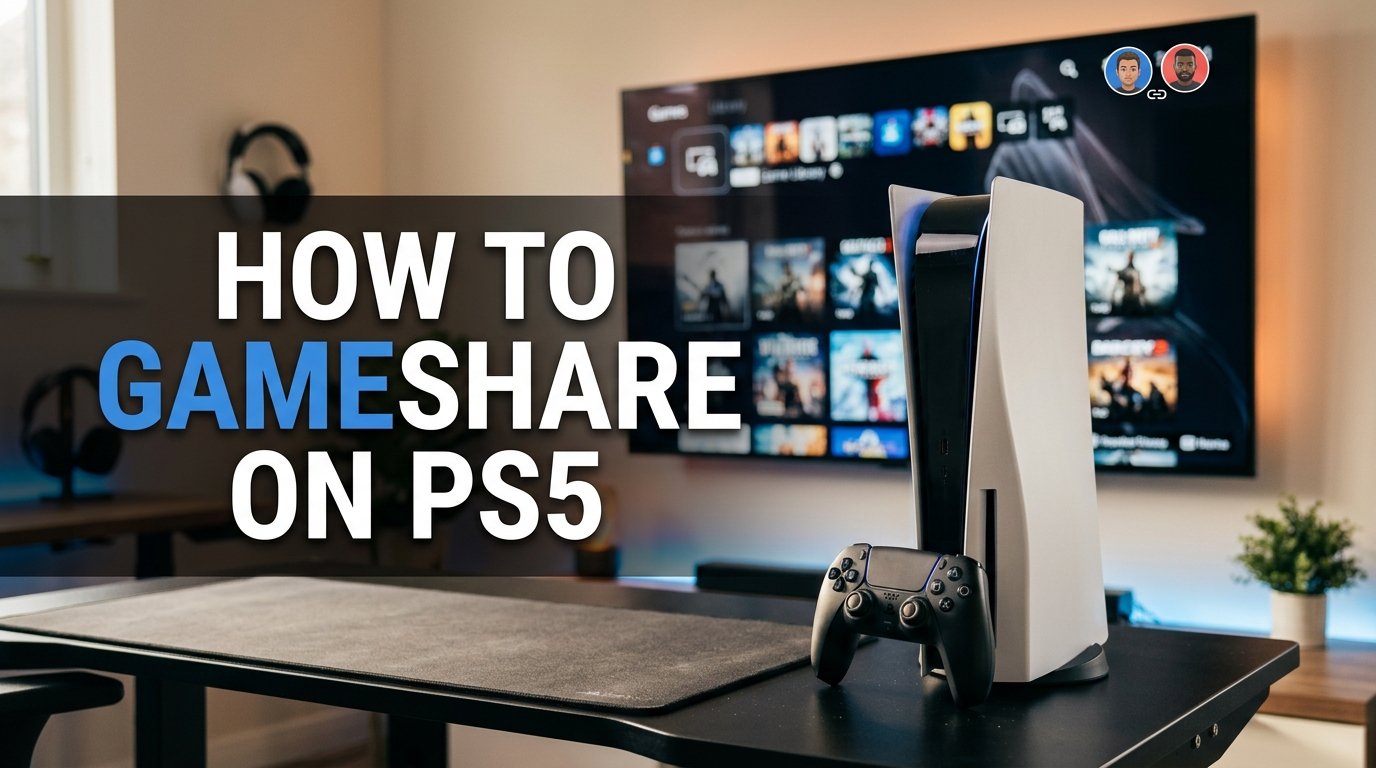
Gamesharing on PlayStation 5 lets you share eligible digital games with another person without buying a separate copy of every title. If you want to play games with a friend or family member while saving money, learning how to gameshare on PS5 can help you make the most of your digital game library.
The process uses a built-in feature called Console Sharing and Offline Play. Once configured correctly, another user on the selected PS5 can access eligible games you’ve purchased and some PlayStation Plus benefits. The setup is straightforward, but there are a few account security rules and limitations you should understand before getting started.
Quick Answer: How to Gameshare on PS5
To gameshare on PS5, sign in to your PlayStation Network account on the other person’s console. Go to Settings > Users and Accounts > Other > Console Sharing and Offline Play, then select Enable. Download your eligible digital games from your library. Sign out or switch users afterward; the other person can play eligible shared games from their own account.
What You Need Before Gamesharing
Before changing any settings, make sure both people have the necessary equipment and account access.
- A PS5 console: The other person needs access to a PlayStation 5 console. The feature also works with compatible PS5 digital game libraries.
- A PlayStation Network account: PlayStation Network (PSN) is Sony’s online account service used for purchases, downloads, and online features.
- Your digital game purchases: Games must be eligible digital titles purchased through your account. Disc-based games cannot be shared this way.
- An internet connection: You’ll generally need internet access to sign in, enable sharing, and download games.
- Access to your account: You must be able to sign in and complete any required security verification.
- A trusted person: Only share account access with someone you trust because your account may contain payment information, purchases, and personal details.
You don’t need to buy a second copy of every eligible digital game. However, some titles, add-ons, subscriptions, and online features have separate restrictions.
[Image: A PS5 home screen with the Settings gear icon highlighted, showing the beginning of the console-sharing setup.]
Alt text: PS5 Settings menu where Console Sharing and Offline Play can be configured
File name: ps5-console-sharing-settings.webp
Caption: Open the Settings menu before enabling gamesharing on the target console.
How to Gameshare on PS5 Step by Step
Follow these steps carefully to set up gamesharing on the other person’s PS5.
1. Sign In to Your PlayStation Account on the Other PS5
Action: Add your account to the console.
Turn on the PS5 you want to share games with. From the user selection screen, choose the option to add a user and follow the on-screen instructions to sign in to your PlayStation Network account.
Enter your account credentials and complete any verification steps requested by Sony. Avoid saving your password on a console you don’t fully trust.
If the other person already has their own account on the PS5, they can keep using it. You only need to add your account temporarily to configure sharing and access your purchased library.
2. Open the Console Sharing Settings
Action: Navigate to the sharing menu.
After signing in with your account, open the PS5 home screen and select the Settings gear icon in the upper-right corner.
Navigate to:
Settings > Users and Accounts > Other > Console Sharing and Offline Play
This menu controls whether other users on that particular PS5 can access your eligible digital purchases. The feature is sometimes informally called PS5 primary-console sharing, but Sony’s current setting is named Console Sharing and Offline Play.
3. Enable Console Sharing and Offline Play
Action: Select Enable.
Open the Console Sharing and Offline Play menu and check its current status. If the screen offers an Enable option, select it and confirm your choice if prompted.
If the screen says the feature is already enabled, you don’t need to enable it again. Your account can have Console Sharing and Offline Play enabled on only one PS5 at a time.
If you previously enabled the feature on your own console, you may need to disable it there before enabling it on the other PS5. Avoid changing this setting unnecessarily because it affects how your purchased games are shared across consoles.
4. Find and Download Your Digital Games
Action: Open your purchased game library.
Return to the home screen and open your Game Library. Depending on your console’s interface, you can find it from the Games section.
Choose Your Collection or another relevant library category, locate a game you’ve purchased, and select Download. Repeat this process for any other eligible games the other person wants to play.
Some games may require additional storage space, updates, or separate downloads for add-ons. If a game doesn’t appear, confirm that you’re signed in to the account that purchased it and check whether the title is eligible for sharing.
5. Switch Back to the Other Person’s Account
Action: Let the other person play from their own profile.
Once Console Sharing and Offline Play is enabled and the games are downloaded, switch to the other person’s PSN account on the same PS5.
They should be able to launch eligible shared games from their own profile without signing in to your account every time. Their game progress, trophies, and saved data generally remain associated with their own account.
This is one of the main advantages of gamesharing: two people can use separate profiles instead of sharing one account and mixing their achievements or game saves.
[Image: Two separate PS5 user profiles displayed on a television, with a digital game library visible in the background.]
Alt text: Separate PlayStation 5 user profiles for playing games through console sharing
File name: ps5-gamesharing-user-profiles.webp
Caption: The other player should use their own profile to keep game progress and trophies separate.
6. Test a Shared Game
Action: Launch a game from the other person’s profile.
Ask the other person to open one of the downloaded games while signed in to their own account. If the game starts normally, your sharing setup is likely working.
If a padlock icon appears or the console reports that the game license cannot be verified, don’t immediately download the game again. First, check the sharing setting, confirm which account purchased the title, and restore licenses if necessary.
Remember that gamesharing doesn’t guarantee access to every digital item. Some add-ons, in-game currency, subscription content, and account-specific rewards may not be shared.
Can You Gameshare on Your Own PS5 Too?
Yes, but there is an important limitation.
Your account can have Console Sharing and Offline Play enabled on only one PS5 at a time. If you enable it on a friend’s console, other users on that console can access eligible purchases associated with your account.
You can still sign in to your account on another PS5 and access your purchased games when the required license and network conditions are met. However, that second console won’t automatically give all its local users access to your shared library.
For example, suppose you own a PS5 and share your digital games with a sibling. Your sibling can use their own account to play eligible games on the console where sharing is enabled, while you can generally play your purchases on your own PS5 using your purchasing account, subject to the applicable online and license requirements.
If you want to return sharing to your personal console, disable Console Sharing and Offline Play on the other console when you can access it, then enable it on yours.
What Games and Benefits Can You Share?
Console sharing supports eligible digital PS5 games, but not every purchase or benefit works identically.
- Eligible digital games: Other users on the sharing-enabled console can play compatible games you’ve purchased.
- Some PlayStation Plus benefits: Eligible benefits may be available to other users on the console, subject to Sony’s sharing rules.
- Online multiplayer: Other users may access online multiplayer benefits included with your qualifying PlayStation Plus subscription, where supported.
- Disc-based games: These require the physical disc and cannot be made available through digital console sharing.
- In-game currency and account-specific rewards: These are often tied to the purchasing account and may not transfer to another player.
- Game-specific subscriptions or services: Access depends on the publisher’s terms and the particular game.
PlayStation Plus is Sony’s paid gaming subscription service. Its benefits vary by plan, and some features remain exclusive to the subscribing account. Check the current terms for your subscription and the game you want to share.
[Image: A PS5 game library showing several digital game tiles and a PlayStation Plus membership icon.]
Alt text: Digital PS5 game library with purchased titles and subscription-related content
File name: ps5-digital-game-library.webp
Caption: Purchased digital games and subscription benefits can have different sharing rules.
Common PS5 Gamesharing Problems and How to Fix Them
If gamesharing doesn’t work as expected, use the troubleshooting guide below to identify the likely cause.
| Problem | Possible cause | How to fix it |
|---|---|---|
| A game has a padlock icon | License or sharing issue | Confirm sharing is enabled on the correct PS5 and restore licenses. |
| The game isn’t in the library | Wrong account or ineligible title | Sign in to the purchasing account and check your purchase history. |
| The Enable option isn’t available | Sharing is already enabled | Check the current status before changing any settings. |
| Another PS5 user can’t launch a game | Sharing isn’t enabled for that console | Enable Console Sharing and Offline Play on the intended PS5. |
| Downloads won’t start | Network or storage problem | Check your connection, free storage, and download queue. |
| A PlayStation Plus feature isn’t available | The benefit may not be shareable | Check the subscription terms and whether the feature is account-specific. |
| Games stop working after a change | Console settings or licenses changed | Recheck the sharing-enabled console and restore licenses if needed. |
Restore Licenses if a Game Is Locked
Action: Refresh your game licenses.
On the PS5, go to Settings > Users and Accounts > Other > Restore Licenses. Select the option to restore licenses and wait for the process to finish.
License restoration refreshes the console’s verification of your digital purchases. It doesn’t delete your games or saved data, and it can resolve certain access problems.
If the game remains locked, verify that the correct purchasing account is being used and that Console Sharing and Offline Play is enabled on the intended console.
Check Your Purchase History
Action: Confirm that the game belongs to your account.
A game may appear in someone’s library because it was purchased by a different account, obtained through a subscription, or previously downloaded through another entitlement.
Sign in to the account that acquired the game and check its library or purchase history. If access came from a subscription, confirm that the subscription remains active and the title is still available under its terms.
Safety Essentials and Tips for Beginners
Gamesharing is convenient, but account security matters. Giving another person access to your account can expose more than your game library.
- Choose someone you trust. Your account may contain personal information, transaction records, and saved payment details.
- Never share verification codes casually. Treat sign-in codes and password-reset links as sensitive account credentials.
- Protect your payment methods. Use appropriate purchase restrictions and avoid leaving unnecessary payment information accessible on another person’s console.
- Don’t pay strangers for gamesharing access. Unofficial sharing offers can involve stolen accounts, scams, or attempts to take over your account.
- Keep your account details private. Avoid sending passwords through public chats or leaving credentials saved on a device you don’t control.
- Understand the console limit. Your account can enable sharing on only one PS5 at a time.
- Respect Sony’s terms. Use the built-in sharing feature rather than attempting to bypass account, licensing, or access restrictions.
If you no longer trust someone with access to your account, change your password, review your account security settings, and use Sony’s available sign-out and account-recovery options. If necessary, follow the official PlayStation guidance for remotely deactivating consoles.
[Image: A PS5 controller beside a laptop displaying a generic account security screen, with a secure home gaming setup.]
Alt text: Protecting your PlayStation Network account while setting up PS5 gamesharing
File name: ps5-gamesharing-account-security.webp
Caption: Protect your login details and share account access only with someone you trust.
Frequently Asked Questions
1. Is gamesharing on PS5 free?
Yes. The Console Sharing and Offline Play feature is built into the PS5, so you don’t pay a separate fee to enable it. However, games, subscriptions, and certain online features may still require payment.
2. Can two people play the same game with PS5 gamesharing?
In many cases, yes. The owner can play on their own PS5 using their purchasing account while another user plays an eligible shared game on the PS5 where Console Sharing and Offline Play is enabled. Simultaneous play can depend on the title, account status, and license requirements.
3. Can I gameshare with more than one PS5?
Your account can enable Console Sharing and Offline Play on only one PS5 at a time. You can sign in to other consoles, but they won’t all receive the same local-user sharing benefits.
4. Does PS5 gamesharing work with physical discs?
No. Console Sharing and Offline Play shares eligible digital purchases, not physical discs. To play a disc-based game, the console needs a compatible disc drive and the game disc.
5. Can I gameshare PS5 games with a friend in another state?
Yes, distance alone doesn’t prevent you from enabling the feature on a friend’s PS5. Both people need to follow the account and licensing requirements, and you should share account access only with someone you trust.
6. Do I need PlayStation Plus to gameshare?
No, you don’t need PlayStation Plus just to enable Console Sharing and Offline Play or share eligible digital games you’ve purchased. However, certain subscription benefits and online multiplayer features may require an active qualifying subscription.
7. Will gamesharing delete my saved games or trophies?
Enabling Console Sharing and Offline Play doesn’t normally delete saved games or trophies. Game progress and trophies are generally associated with the account that earned them, so each person should play from their own profile.
Conclusion
Learning how to gameshare on PS5 is simple once you understand Sony’s Console Sharing and Offline Play feature. Sign in to the other person’s console, enable sharing, download eligible digital games, and switch back to their profile to test access.
Before you finish, confirm that the correct PS5 has sharing enabled and protect your account credentials. With the settings configured properly, you can share eligible games conveniently while keeping your individual profiles, saved progress, and trophies separate.

Hi, I am Gregory Stewart, a professional researcher and author on HowMeans.com. Every day, I dive deep into new and amazing searches to uncover hidden meanings and fascinating facts, keeping you informed and updated with everything you need to know.